



New eBay deals: 20% off on Panasonic gear (max $100 discount)
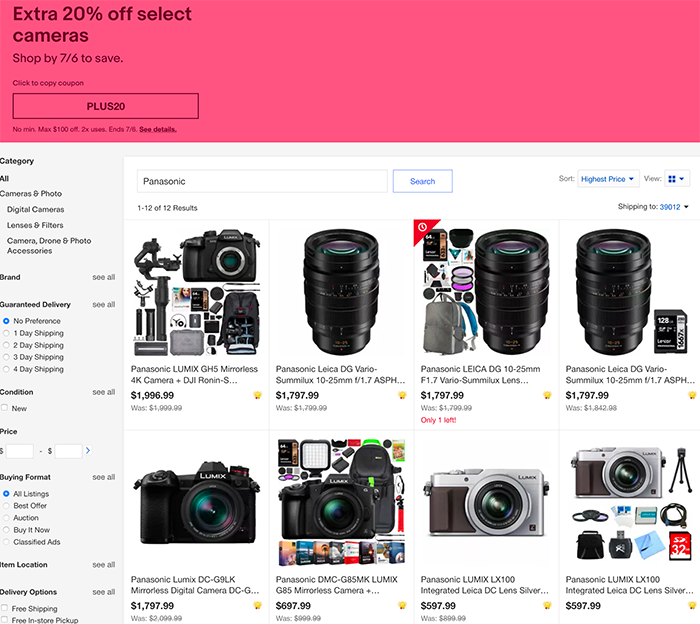
Using the code “PLUS20” you save 20% (max $100) on Photographic gear sold by eBay (click here). And this is the link to the Panasonic specific gear (Click here).
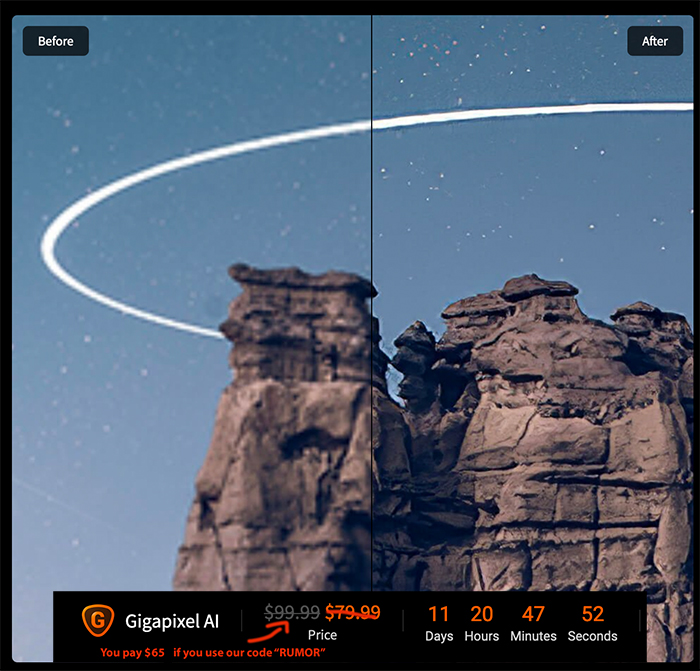
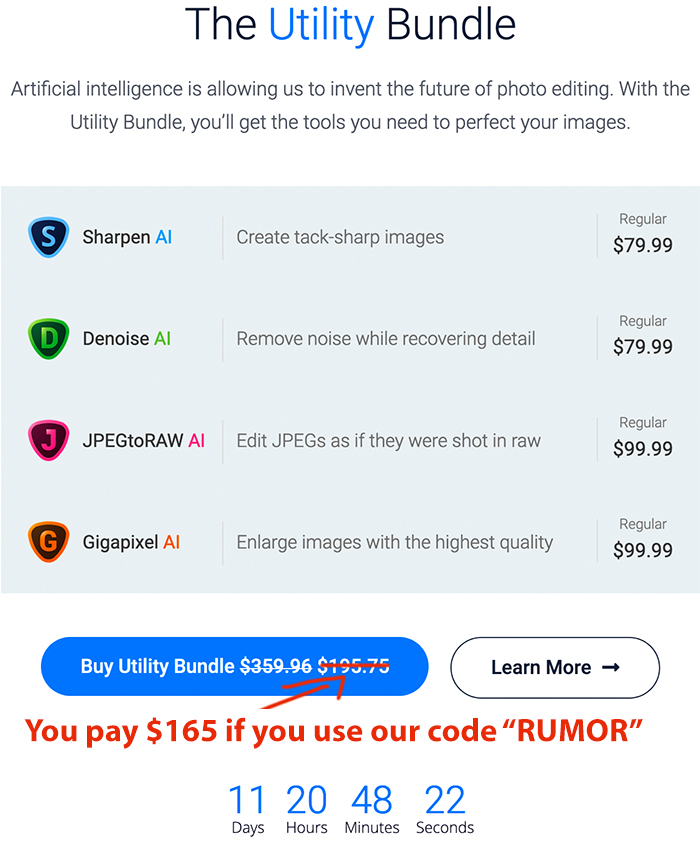
Reminder: Topaz announced a new update for Gigapixel AI (Click here). And by using our code “RUMOR” you pay $65 instead of $99. About this new update:
This update includes a model improvement for better results, a new single-image preview view, new zoom options, and the new “man-made” mode to better enhance the details in cityscapes, typography, and other images with clear outlines and sharp edges.
And til July 7 you have this massive savings on the full Topaz Utility bundle ($195 off using our code “RUMOR“) and Topaz Creator Bundle ($152 off using our code “RUMOR“)
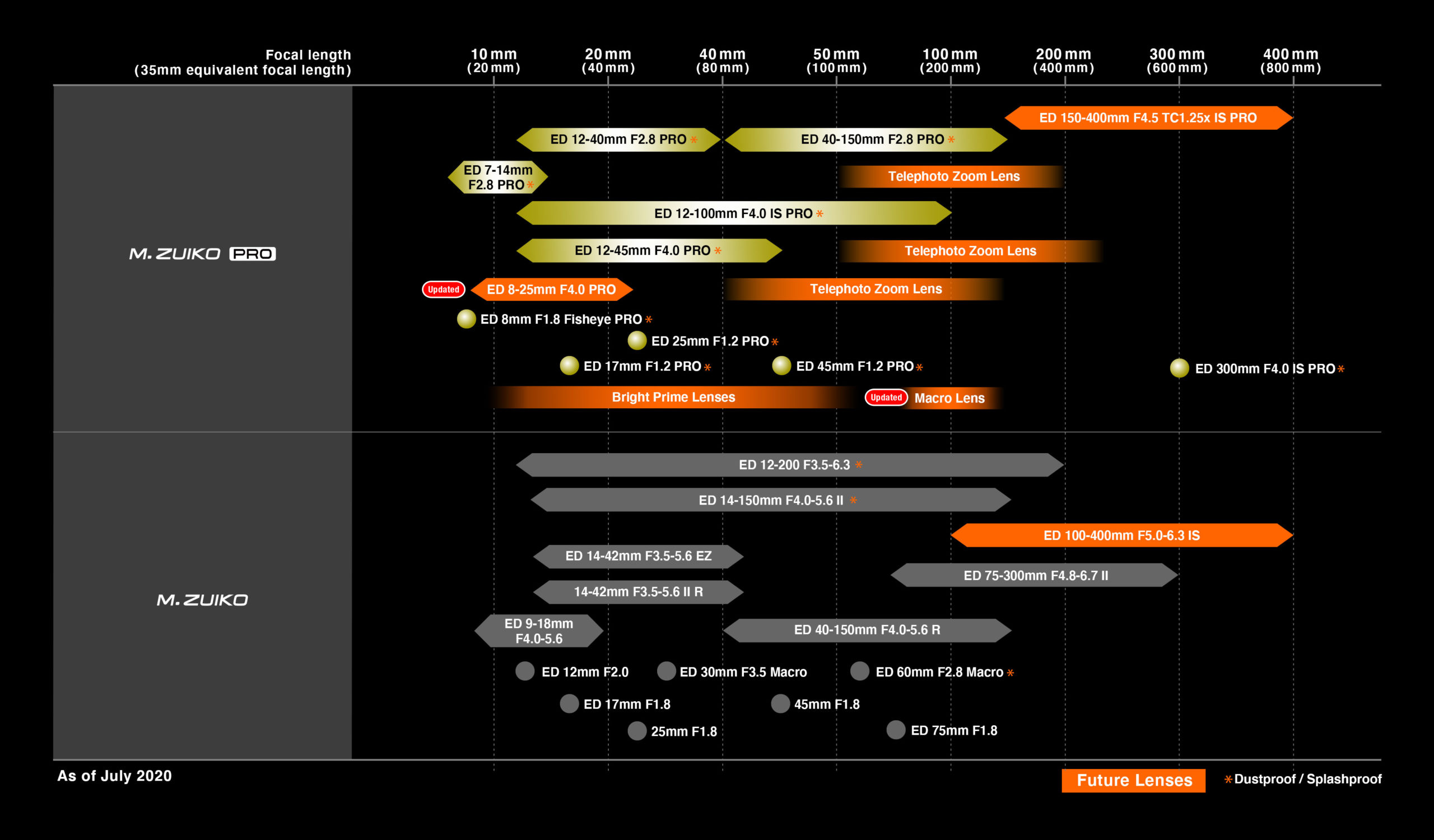
Olympus will ship the 150-400mm f/4.5 in winter. New 8-25mm f/4 Pro lens added to the roadmap
Click on image to enlarge
Olympus has postponed the shipment start for the 150-400mm f/4.5 in winter. And added the new 8-25mm f/4 Pro lens to their roadmap.
Press text:
OLYMPUS UNVEILS UPDATED M.ZUIKO® DIGITAL LENS ROADMAP
Provides Updates on the Development of the M.Zuiko Digital ED 150-400 F4.5 TC1.25x IS PRO Lens and Announces the Development of Firmware to Support Bird Subject Detection Autofocus for the OM-D® E-M1X
Center Valley, PA, July 2, 2020 – Olympus is pleased to announce an updated M.Zuiko Digital lens roadmap, outlining plans to expand the M.Zuiko lens lineup and including an update of anticipated availability of the previously announced M.Zuiko Digital ED 150-400mm F4.5 TC1.25x IS PRO super telephoto zoom lens with built-in 1.25x teleconverter.
The upcoming M.Zuiko Digital ED 150-400mm F4.5 TC1.25x IS PRO lens, for which development was announced in January 2019, continues with an estimated scheduled release of winter 2020. This is the first Olympus® interchangeable lens with a built-in 1.25x teleconverter, extending the maximum focal length to 1000mm1 (35mm equivalent). Final images of the lens are now available.
Two new lenses, the M.Zuiko Digital ED 8-25mm F4.0 PRO lens, as well as an unspecified macro lens, will join the M.Zuiko lineup as part of Olympus’ commitment to broaden the field of photographic expression. Olympus will continue enhancing its lens lineup to maximize the unrivaled system portability made possible by the compact, lightweight, high image quality of the Micro Four Thirds® System.
Furthermore, to make super telephoto shooting more convenient and to fulfill the growing needs of birding and wildlife photographers, development is underway to newly add Bird Detection capability to Olympus’ Intelligent Subject Detection Autofocus on the OM-D E-M1X camera. This new feature will be available for the E-M1X via a firmware update that is scheduled for release in Winter 2020.
1 When using the built-in teleconverter. Widest aperture setting is F5.6.
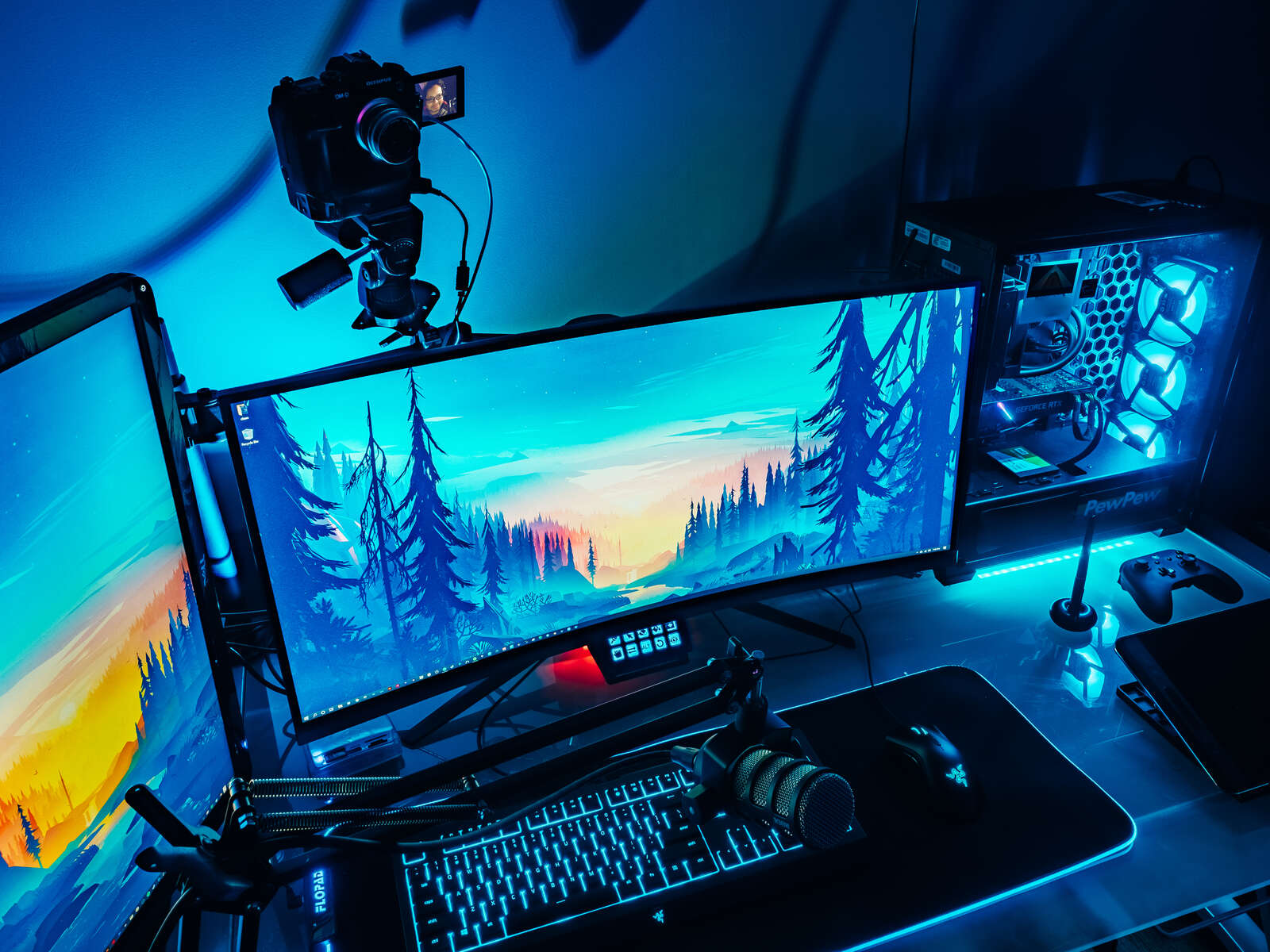
Olympus announced OM-D Webcam Beta for Windows
Press text via Olympus:
Whether you’re connecting with loved ones or collaborating with colleagues from home, video streaming is now more important than ever. We’re excited to introduce Olympus’ OM-D Webcam Beta software! This free beta software allows you to use select OM-D cameras in conjunction with video conferencing applications.
OM-D Webcam Beta is compatible with the following camera models:
- E-M1X
- E-M1, E-M1 Mark II, E-M1 Mark III
- E-M5 Mark II
Follow These Step-by-Step Instructions to Get Started
Installation:
- Download OM-D Webcam Beta.
- Open the setup.exe file and follow the on-screen instructions.
Usage:
- Connect your OM-D and PC using the official USB-C tether cable provided with the original box.
- Turn on the camera.
- Select
 on the monitor.
 - Open your web conferencing application.
- Go to your video preferences in the application and select ‘OM-D Webcam Beta.’
Please note: at this time, OM-D Webcam Beta software is compatible with Windows PCs only.
OM-D Webcam Beta software does not output sound from the camera. However, all Olympus LS-P recorders – like the LS-P4 – can be used as USB microphones for video streaming.
How to Set Up USB Audio with Your LS-P Recorder:
- Connect the camera to one USB port, and the LS to another USB port.
- Slide the USB connector slide lever in the direction of the arrow.
- Connect LS Recorder to the extension cable.
- Plug the cable into your PC/MAC
- Press the MENU/SCENE button while the voice recorder is in stop mode.
- Press the + or – button to select the [Device Menu] tab.
- Press the `OK button to move the cursor into the list of setting items.
- Press the + or – button to select [USB Settings].
- Press the `OK button.
- Press the + or – button to select [USB Class].
- Select [Composite]. This will set the recorder to USB Audio Class. The recorder will then be recognized as a USB Microphone/Speaker on the computer
REVORING announces the one step ring that fits on multiple thread size lenses
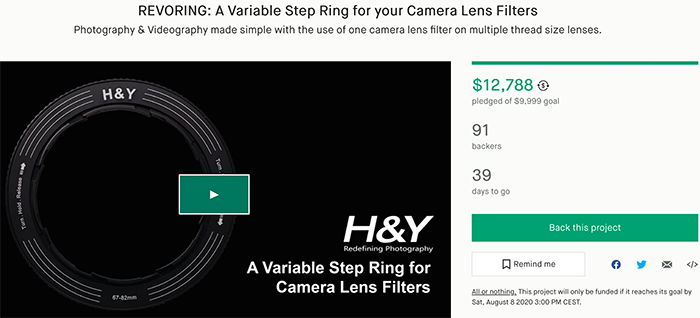
With this new Revoring you can use one single camera lens filter on multiple thread size lenses. You can preorder the new Revoring on Kickstarter.
Here are a couple of early hands-on tests:
a bit of everything…
[NEW] LUMIX Academy | How to live-stream with LUMIX camera and “LUMIX Tether for Streaming (Beta)”
„Vlogging und Video mit Olympus OM-D“ – 3. Oly-Forum Stammtisch
Post Processing Workflow –Software and Hardware I use (Matti Sulanto)
Point-and-Shoots for Pops: 8 Compact Cameras for Father’s Day (Explora).
Hidden Worlds of Macro Photography (Olympus Europe).
Plenty of news on the facebook OMD group, Panasonic FF and the GH5 group.